Choose your source and tracks
Browser detection works alongside yt-dlp extraction. Inspect available formats, audio languages, codecs, and sizes where the source provides them.
Find media in your browser. Choose your tracks.
Let your desktop handle the download.
Independent distribution · No account · Optional donations
Download the extension and available unsigned desktop builds below. Each desktop download lists its validation status.
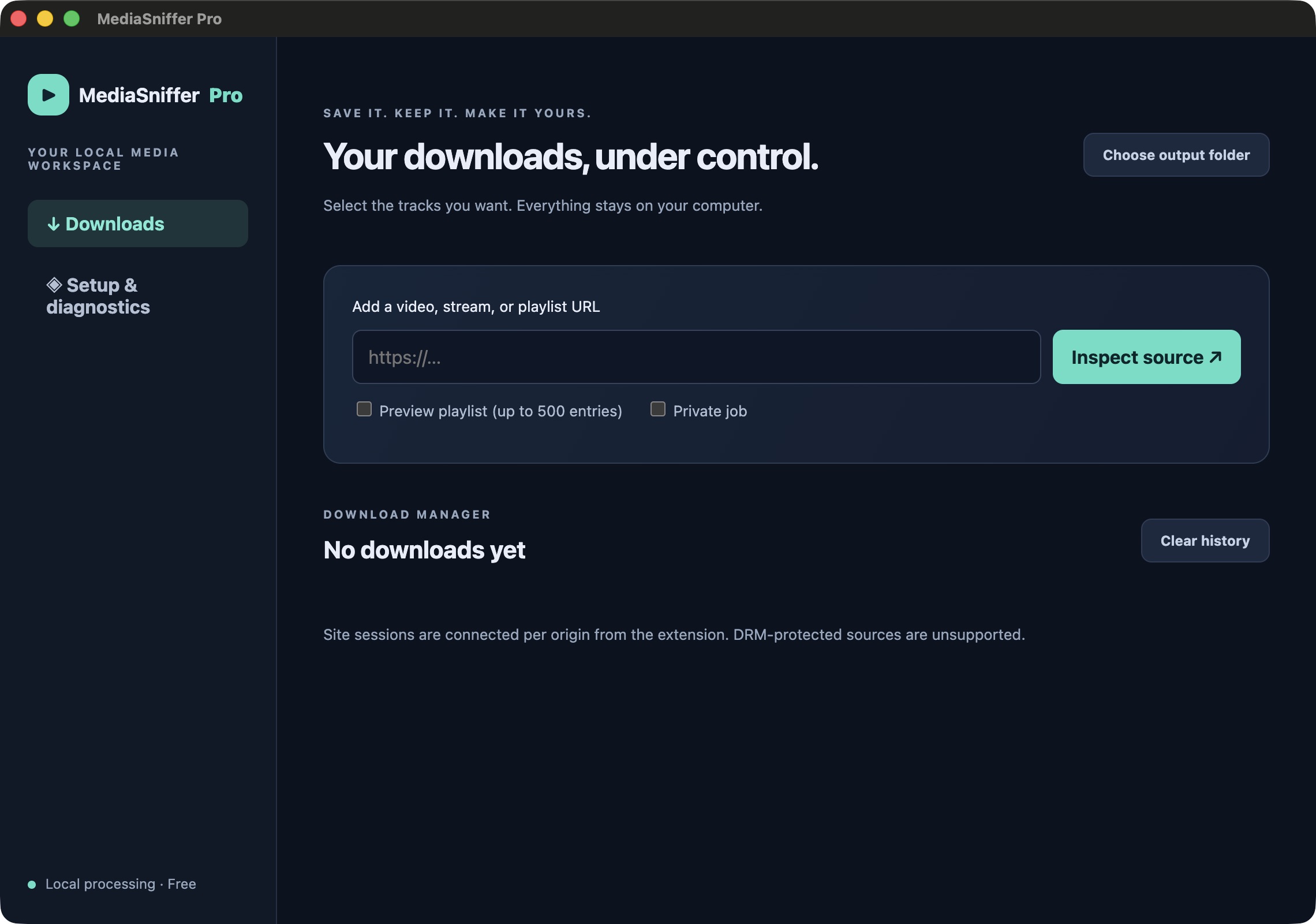
A BROWSER EXTENSION. A DESKTOP ENGINE. ONE WORKFLOW.
Discover page media or inspect a source URL. Review formats before adding a job.
Downloads, conversion, and history run locally. This website never processes your media.
No universal compatibility claims. DRM stays unsupported. Validated platform results will accompany releases.
FROM PAGE TO FILE
The browser finds the source. The desktop keeps the queue moving, even after you leave the page.
Walk through setup ↗Play media in your browser, open the library, or paste a source URL into the desktop app.
Review video and audio formats. Preview playlist entries before queuing them.
Monitor progress, control your queue, and find the finished file on your own machine.
CAPABILITIES, WITHOUT THE FINE PRINT
Browser detection works alongside yt-dlp extraction. Inspect available formats, audio languages, codecs, and sizes where the source provides them.
Desktop-owned jobs, local SQLite history, safe filenames, and explicit recovery behavior.
Explicit live recording controls and selected-entry batch queues. Compatibility is being tested.
Conversion, compression, audio extraction, and trimming use local media engines.
Optional, per-origin session connection. No whole-browser cookie import. Cookies and session references stay out of persistent history.
The desktop app is required for advanced features. Availability varies by source. Standard AES-128 HLS and DRM are treated separately; DRM and access-control bypass are unsupported.
INDEPENDENT DISTRIBUTION
Use the extension for direct files. Available unsigned desktop packages handle advanced workflows locally.
No validated stable release is published yet.
Unsigned desktop downloads. Your operating system may warn about or block these apps. Packages have passed their stated engine and package checks; full clean-machine and browser certification is pending. End users do not need Node, Python, Homebrew, or terminal tools.
Windows 11 · x64
macOS 14+ · Apple Silicon / Intel
Ubuntu 24.04 · x64
DEB for system installation. AppImage needs FUSE 2 support and permission to run.
Chromium extension ZIP · Load unpacked · Manual updates
Chrome, Edge, and Brave are test targets; compatibility is not yet certified. Firefox is outside the first release.
Checksums will appear with signed release artifacts.
A GUIDED FIRST RUN
Try it now: download the extension ZIP, extract it to a permanent folder, open your browser’s Extensions page, turn on Developer mode, and choose Load unpacked. Direct downloads work without the desktop app.
Test your installation with our synthetic sample video ↗
For advanced workflows, download a desktop package listed for your system. On macOS, open the DMG and drag MediaSniffer Pro to Applications. On Ubuntu 24.04, choose DEB for system installation; AppImage is the portable option. Desktop packages are currently unsigned and may trigger operating-system security warnings. In the desktop app, use Setup & diagnostics → Connect installed browsers.
Extract the extension ZIP into a permanent folder. Don’t leave it in a temporary directory or delete it after installation.
Open your browser’s Extensions page. Turn on Developer mode, click Load unpacked, and select the extracted folder.
Open the sample video page, play the video, then open MediaSniffer Pro and download the MP4. If you have the desktop app, connect it in settings for advanced workflows.
Finish browser-managed jobs first. Replace the files inside the same installation folder, then click Reload on the Extensions page. Desktop updates use verified release downloads.
WHEN SOMETHING NEEDS ATTENTION
We distribute independently. Chrome’s consumer installation rules require unpacked installation for this workflow on Windows and macOS. We don’t modify enterprise policies or ask you to disable browser security.
Open the desktop app, check engine diagnostics, and register installed browsers. Restart your browser, verify the extension ID, and enable desktop integration in extension settings.
Open the full extension library. Connect the specific HTTPS origin using the explicit site-session button. Reconnect after restarting the desktop app or when the session expires. Access to another origin requires separate authorization.
Inspect the source again; signed URLs and formats can expire. Confirm that the selected tracks are available, check free disk space, and review the job error. Protected sources cannot be processed.
The desktop app owns advanced download jobs. Closing its window keeps it in the tray. Quitting asks how to handle active work. Browser-only jobs still depend on the browser.
Remove the extension from your browser and uninstall the desktop app. Downloaded files stay on disk. See the privacy page for app-data locations and native-host registration cleanup.
FREE, WITH OPTIONAL SUPPORT
All features are free. A donation link will appear when a verified destination is configured.